

Image Generation
Generate icons, diagrams, and artwork with local Stable Diffusion, LLM-driven SVG pipelines, and Python/Pillow code — then save your settings as reusable templates.
Built-in pipelines
Stable Diffusion txt2img
Direct text-to-image generation via a local Forge/A1111 WebUI instance. Control model, resolution, steps, CFG scale, sampler, seed, and negative prompts.
SD Refined
LLM expands your brief description into a detailed SD prompt with quality tags, generates the image, then a vision model validates the result against your original request.
SD img2img
Transform existing images with Stable Diffusion. Paste, drag, or upload a source image, adjust denoising strength, and guide the transformation with a text prompt.
SD img2img Refined
Combines LLM prompt refinement with img2img generation and vision validation for iterative image-to-image workflows.
SVG Icon
LLM generates clean, minimal SVG icons from a text description, validates the markup, then refines with feedback for up to 2 iterations.
SVG Diagram
LLM generates SVG diagrams (flowcharts, architecture, sequences) with validation against criteria.
Code Image
LLM writes Python/Pillow code to generate an image programmatically — runs the code via the executor service, validates output, and refines.
HTML Render
LLM generates HTML/CSS, rendered to a pixel-perfect image via a headless browser.
Generate templates
Save and reuse your generation settings
Save from anywhere
Configure a pipeline with the perfect prompt, model, resolution, sampler, and steps — then save it as a named template with one click. You can also save templates directly from any generated image's detail view.
For img2img workflows, templates store the source image as a referenced asset so it's loaded automatically when the template is applied.
Apply and tweak
Select a template from the Generate modal dropdown and every field pre-fills — pipeline, prompt, negative prompt, model, size, sampler, seed, steps, CFG, and source image. Change what you need and generate.
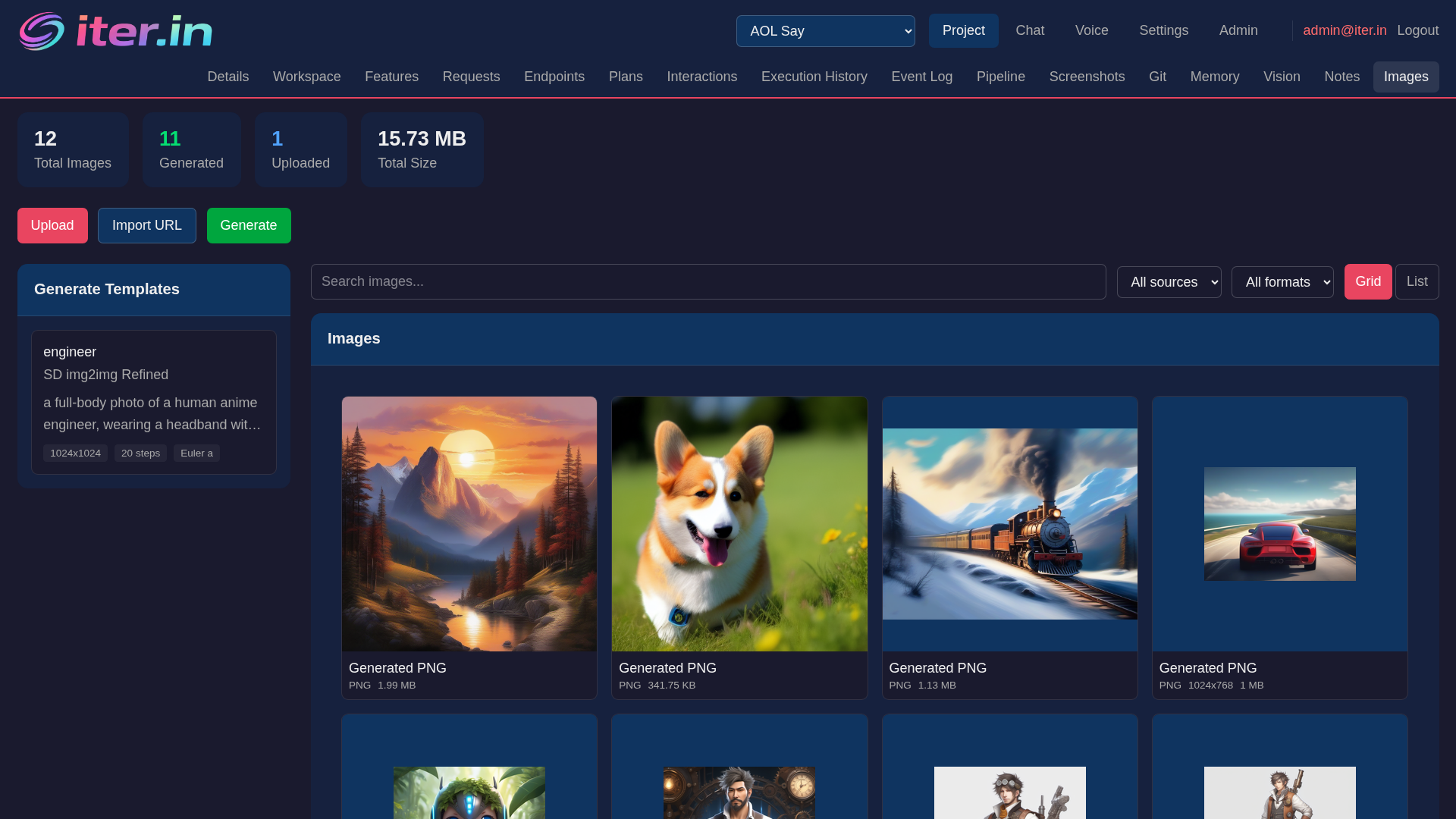
Templates appear as cards in the sidebar of the Images page. Click any card to open a full editor with the same two-column layout as the Generate modal.
Full editing
Every parameter is editable from the template detail modal — name, prompt, negative prompt, model, size, sampler, seed, steps, CFG scale, denoising strength, and source image. Changes are saved via the REST API.
REST API
Stable Diffusion integration
Connect to your local Forge or A1111 WebUI
Local GPU, your models
Connects to any A1111/Forge WebUI via REST API. Run on your own GPU — SDXL, SD 1.5, or any checkpoint you have installed.
Full parameter control
Model, resolution, steps (1–50), CFG scale, sampler (Euler a, DPM++ 2M Karras, DDIM, etc.), seed, negative prompt, and denoising strength for img2img.
img2img with source images
Paste, drag-and-drop, or upload a source image. Adjust denoising strength to control how much the AI transforms it. Source images are preserved in templates.
Vision validation
The refined pipelines pass generated images through a vision-language model to verify the output matches your request before saving.
Dashboard
Upload, import, generate, and manage
Upload
Drag-and-drop, paste from clipboard, or pick from your filesystem. Images are stored per-project with thumbnails auto-generated.
Import
Import images from any URL. The server downloads, stores, and generates thumbnails automatically.
Generate
Select a pipeline, configure parameters, optionally apply a template, and generate. Pipeline runs show progress in real time.
Image detail
Click any image for a full-size preview with metadata, generation info (model, seed, sampler, steps, CFG, duration), tags, and actions — copy link, download, edit, save as template, or delete. Deep-link to any image via ?id= query parameter.
MCP tools
Image tools are available via MCP for use in chat, CLI, and editor integrations:
iter_generate_asset
Run any generation pipeline with full parameter support — prompt, model, resolution, steps, sampler, seed, and more.
iter_list_assets
List images with optional tag, source, and format filters.
iter_upload_asset
Upload a local file as a project image.
iter_pipeline_status
Check pipeline run progress and step results.